
 By
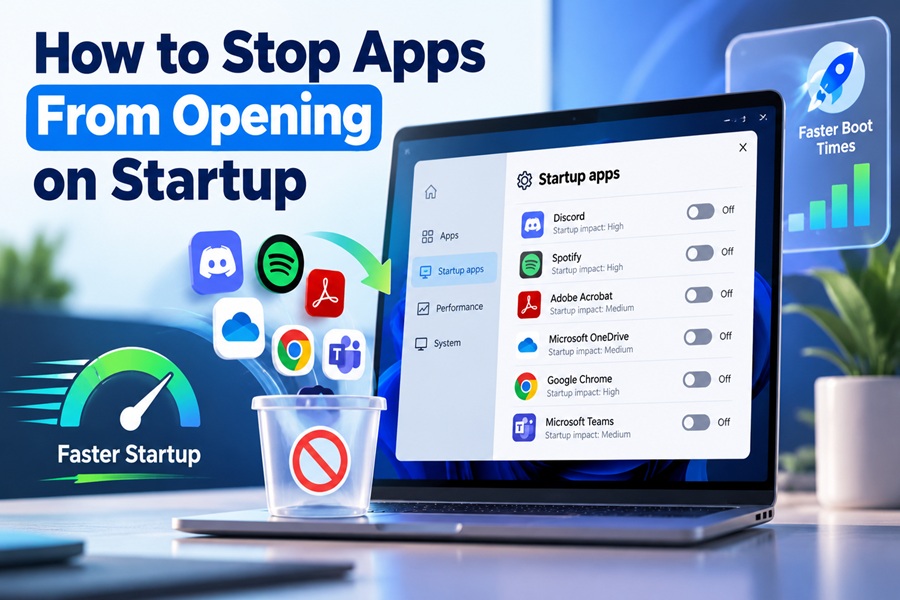
You press the power button, go pour a glass of water, and come back to a screen that looks like a busy railway platform. A chat window is flashing, a music player is warming up, a cloud sync tool hums in the corner, and somewhere behind all of it sits the launcher for a game you finished months ago. Nothing here was invited, yet every bit of it showed up.
If that sounds familiar, the slowdown is not in your head. Learning how to stop apps from opening on startup is one of the cheapest performance upgrades available, because it costs nothing and takes about five minutes. This guide covers every route on Windows and Mac, explains why some apps refuse to stay switched off, and gives you a simple way to decide what deserves a seat at boot and what does not.
Why every program wants a seat at the table
Software makers love startup access. An app that is already running opens the instant you click it, can send you notifications, and keeps you inside its ecosystem. During installation, many programs quietly register themselves to launch whenever you sign in, often without asking a clear question. Install ten programs over a year and you may have ten extra tenants living in memory before you open anything.
The cost lands in three places. First, the desktop takes longer to feel usable. Second, less memory is left for the work you actually care about. Third, on laptops, background processes keep the processor busy and the battery drains faster than it should.
Step one: look before you cut
Windows makes the audit easy, and the steps are the same on Windows 10 and Windows 11.
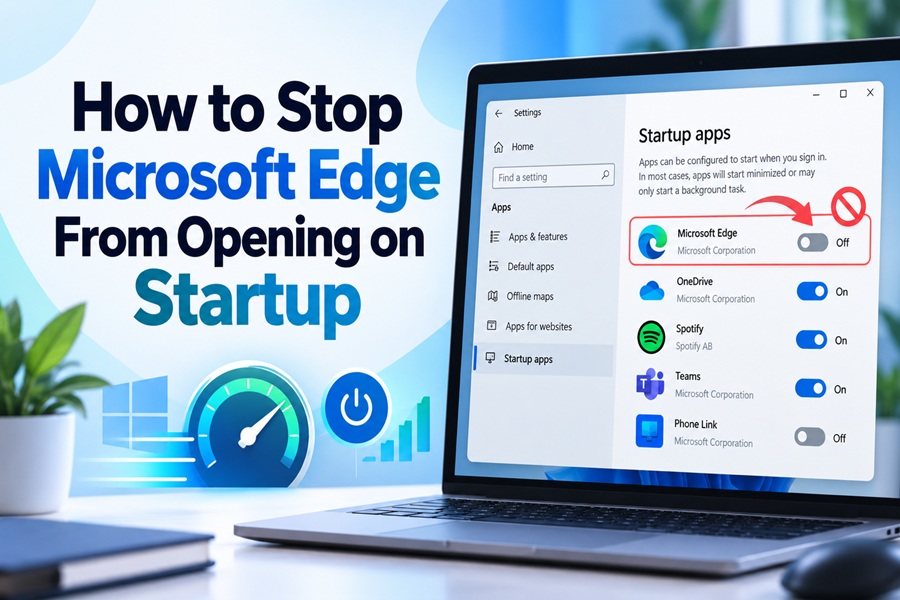
- Press the Windows key and I together to open Settings.
- Choose Apps from the menu.
- Open Startup. On Windows 11 it sits at the bottom of the Apps list.
- Sort the list by startup impact.
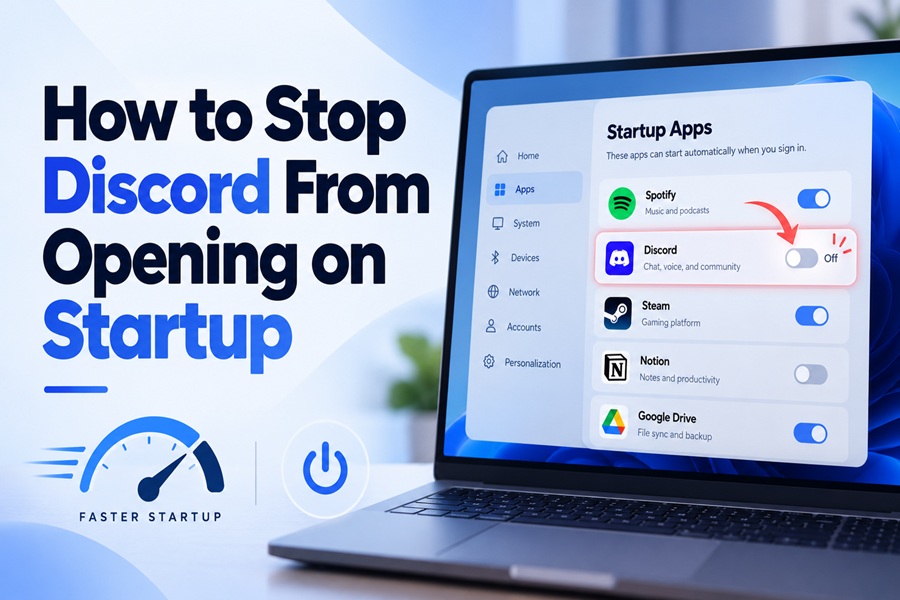
- Switch the toggle to Off for anything you do not need the moment you sign in.
The impact label is Windows’ own estimate. Items marked high impact stretch your boot time the most, so begin with those. Items marked low or no impact are rarely worth the effort. The change takes effect the next time you sign in, so there is no need to restart just to confirm it saved.
Step two: Task Manager as a second opinion
Press Ctrl, Shift and Esc together to open Task Manager, then switch to the Startup apps tab. You will see the same programs, now with a status column. Select one and press Disable at the top. Enabling it again later is just as simple.
This view can show how much each program delays your sign in on your particular machine, which sometimes differs from the general label in Settings.
Step three: the Startup folder and in app switches
Some programs skip the official list and drop a shortcut into a special folder that Windows scans at every sign in. Press the Windows key and R, type shell:startup and press Enter. Whatever shortcuts appear in that folder will launch with your session. Deleting a shortcut stops that launch without uninstalling the program.
Then there are apps that keep the control inside their own preferences. Messaging tools, music players, VPN clients and game launchers often include a line such as Launch at startup or Open at login. If an app keeps coming back after you turned it off elsewhere, open its own settings and look for that line, because the app may be putting itself back every time it updates.
One more Windows detail is worth knowing. Under Settings, then Accounts, then Sign in options, there is a switch that saves your restartable apps and reopens them the next time you sign in. If programs appear that you never set to start, turning that switch off can end the mystery.
Mac: Login Items and the Background list
On macOS Ventura and later, open System Settings, choose General, then Login Items. Two areas matter here.
Open at Login holds the apps that launch when you sign in. Select one and press the minus button to remove it. The plus button lets you add your own favorites if you ever want the opposite effect.
Allow in the Background is a separate list for helper processes that apps install. You can switch an item off here but you cannot delete it. If you disable a helper that an app depends on, that app may complain or lose a feature such as syncing, so switch off only the names you recognize.
On older macOS versions the same list lives in System Preferences, under Users and Groups, on the Login Items tab.
What is safe to switch off and what is not
Not everything on the list is a nuisance. A few entries do real work in the background, and removing them can cause confusing problems later. Use this table as a rough guide.
| Kind of app | Typical examples | Suggested action |
|---|---|---|
| Chat and community apps | Messaging and voice tools | Switch off and open when needed |
| Music and video players | Streaming clients | Switch off |
| Game launchers | Store clients and overlays | Switch off unless you play daily |
| Cloud storage | File sync tools | Keep if you rely on instant backup, otherwise switch off |
| Security tools | Antivirus and firewall utilities | Keep on |
| Hardware helpers | Audio, graphics and touchpad utilities | Leave alone if unsure |
| Updaters | Small helper entries | Usually safe, but you must update by hand afterward |
If you do not recognize a name, search for it before disabling it.
The ghost entries left by uninstalled apps
Sometimes an app is long gone and its name still sits in the list. On Windows, the entry usually points to a file that no longer exists, and disabling it in Task Manager is enough. On a Mac, the cause is usually a leftover property list file in one of the LaunchAgents or LaunchDaemons folders inside the Library directory. Removing the file that belongs to the deleted app clears the entry. Take care to touch only files that clearly match software you have already removed.
Keeping the list short for good
New software keeps asking for the same privilege, so a small habit helps. After you install anything new, spend thirty seconds on the Startup page and switch off whatever the installer added. After large system updates, glance at the list again, since a handful of apps have a way of turning themselves back on.
You can also think of startup as a guest list for a small dinner. Security software and the tools you use every single morning get a place at the table. Everything else can wait until you call for it, and your computer will thank you with a faster, quieter start every time you switch it on.



Comments