
 By
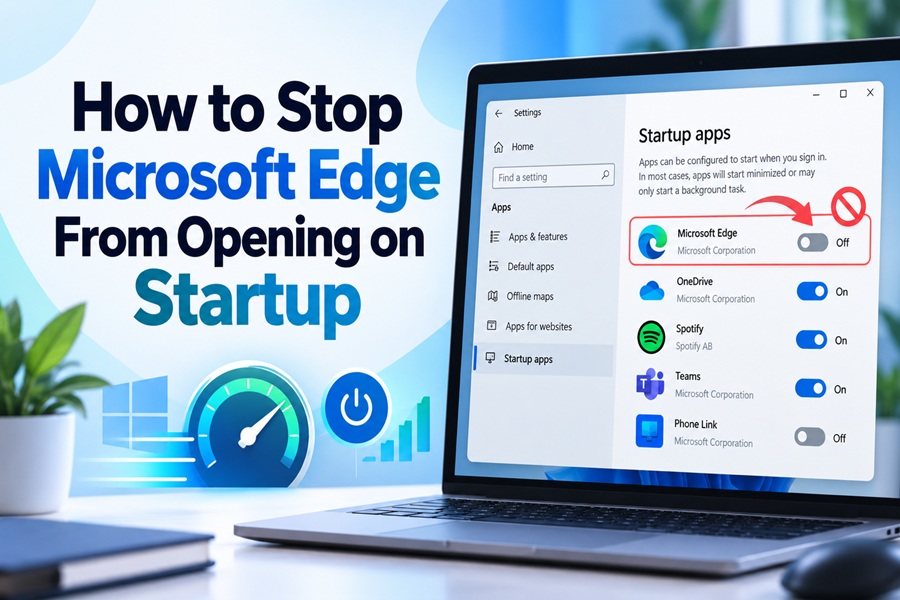
Here is a small puzzle that annoys a lot of Windows users. You open the Startup list, look for Microsoft Edge, and it is not there. Or it is there, you switch it off, and Edge still appears after the next restart. Meanwhile Task Manager shows Edge processes running even though you have not touched a browser all day.
Nothing is broken. Edge simply has several different ways of starting, and the visible startup list controls only one of them. To get the result you want, you have to work through the suspects in order. This guide does exactly that for anyone searching for how to stop microsoft edge from opening on startup.
First, decide which problem you actually have
Two different things get described with the same words. Some people see the Edge window pop up in front of them when they sign in. Others see no window, but find Edge processes quietly running in the background. A third group sees Edge open with a particular page every time they launch it. Each has a different cause, so check the table before changing anything.
| What you notice | Most likely cause |
|---|---|
| Edge window appears at sign in | Startup list entry or restartable apps feature |
| No window, but Edge shows in Task Manager | Startup Boost or background running |
| Edge opens with the same sites each time | Startup page setting inside Edge |
| Edge comes back after every system update | A policy or a leftover shortcut |
Suspect one: the Windows startup list
Start with the easy check. Open Settings, go to Apps, then Startup, and look for Microsoft Edge. If it is there, switch it off. You can also press Ctrl, Shift and Esc, open the Startup apps tab in Task Manager, select Edge and press Disable.
If Edge is not listed at all, do not worry. That is the normal situation for many machines, and it tells you the real trigger is somewhere else.
Suspect two: Startup Boost
This is the usual culprit. Startup Boost is a feature inside Edge that keeps a few lightweight processes alive so the browser opens faster when you click its icon. Microsoft describes it as a speed trick, and it works, but the price is that Edge is partly awake all the time, including right after you sign in.
To turn it off:
- Open Edge and go to Settings.
- Choose System and performance.
- Switch off Startup boost.
Suspect three: background extensions and apps
Directly under that setting sits a second switch, usually worded as continue running background extensions and apps when Microsoft Edge is closed. As long as it stays on, closing the window does not truly end the browser, because extensions and web apps can keep processes alive. This also explains why people report Edge in Task Manager long after they closed it.
Turn this off as well, then fully quit Edge or restart your computer.
Suspect four: Windows reopening apps for you
Windows has a feature that remembers programs from your last session and brings them back after you sign in. If Edge was open when you shut down, it may reappear for that reason alone.
Go to Settings, then Accounts, then Sign in options, and switch off the option that automatically saves your restartable apps and restarts them when you sign back in. A single browser window left open overnight is a surprisingly common reason for the so called mystery startup.
Suspect five: a shortcut in the Startup folder
Press the Windows key and R, type shell:startup and press Enter. Look for any Edge shortcut in the folder that opens. If you find one, delete it. Check the shared startup folder for all users too, which sits inside the ProgramData area under the Start Menu. Shortcuts there come from installers or scripts, and removing them does not harm the browser itself.
Suspect six: the startup page inside Edge
If your complaint is about what Edge shows once it launches, the setting you need is in the browser rather than in Windows. In Edge, open Settings and choose Start, home and new tabs. Under the option for when Edge starts, you can pick between opening a new tab, continuing where you left off, or opening a specific set of pages. Choose the one that matches your habits, and remove any pages you no longer want there.
If strange pages keep appearing, an extension or an unwanted program may be adding them. Review your extension list and remove anything you did not install on purpose. As a last resort, the reset settings page in Edge restores defaults without deleting your bookmarks and saved passwords, though you should read the screen before confirming.
Suspect seven: a policy that tells Edge to prelaunch
On some computers, particularly those that have been through company management or heavy tuning, a policy forces Edge to start early. The policy is named Allow Microsoft Edge to prelaunch at Windows startup, when the system is idle, and each time Microsoft Edge is closed. If Startup Boost keeps turning itself back on, this is worth a look.
Windows Pro and higher editions can change it through the Group Policy editor by setting the policy to Disabled. On Windows Home, the same effect comes from the Registry Editor. Under the Edge policies location inside the local machine software hive, a value named AllowPrelaunch set to zero turns the behavior off. Create a restore point before editing the registry, because a wrong change can cause problems elsewhere. Afterward, Edge will display a message that your browser is managed by your organization. That label is expected, since a policy is now present, and it does not mean someone else controls your computer.
Things that look like fixes but are not
Removing the Edge icon from the taskbar changes nothing about startup. Ending the process in Task Manager only helps until the next sign in. Uninstalling Edge is not a clean option on many Windows 11 setups, because it is treated as part of the operating system in a lot of regions. Controlling its settings is the more dependable route.
A calm order of operations
If you want to skip the detective work, do this in sequence and restart after each step so you can see what worked.
- Disable Edge in the Windows startup list if it is shown.
- Turn off Startup boost and background running in Edge.
- Turn off restartable apps in Sign in options.
- Clear the Startup folder of Edge shortcuts.
- Apply the policy change only if the problem remains.
For most people the second step is the one that finally ends the habit. Edge then behaves like any other browser, opening when you ask and resting when you do not, and your computer gets its memory and a quieter first minute back.



Comments