
 By
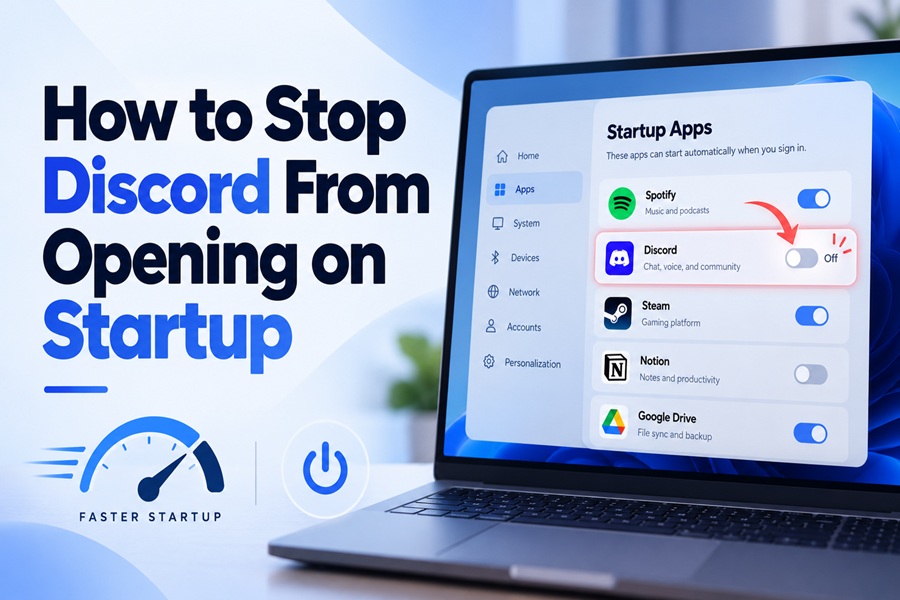
Discord has a habit that feels almost friendly at first. You install it to talk to a few people, and from then on it appears the second you sign in to your computer, window wide open, notification sounds ready. Weeks later it is the first thing you close every morning.
Switching this off is easy, but the reason people keep searching for how to stop discord from opening on startup is that the first fix does not always stick. The app can be started through more than one door, so this guide takes them one at a time, from the simplest to the stubborn ones.
Door one: Discord’s own setting
This is where nearly everyone should begin, and it works on both Windows and Mac.
- Open Discord and click the gear icon next to your name at the bottom left to reach User Settings.
- In the left sidebar, scroll to the App Settings group and choose Windows Settings. On a Mac the matching section covers the system level options.
- Find the toggle called Open Discord and turn it off.
Right below it you will see Start Minimized. Keep that name in mind, because it is the compromise many people actually want, and we will come back to it shortly.
Once the toggle is off, restart the computer once to confirm. For the majority of users that is the end of the story.
Door two: Task Manager on Windows
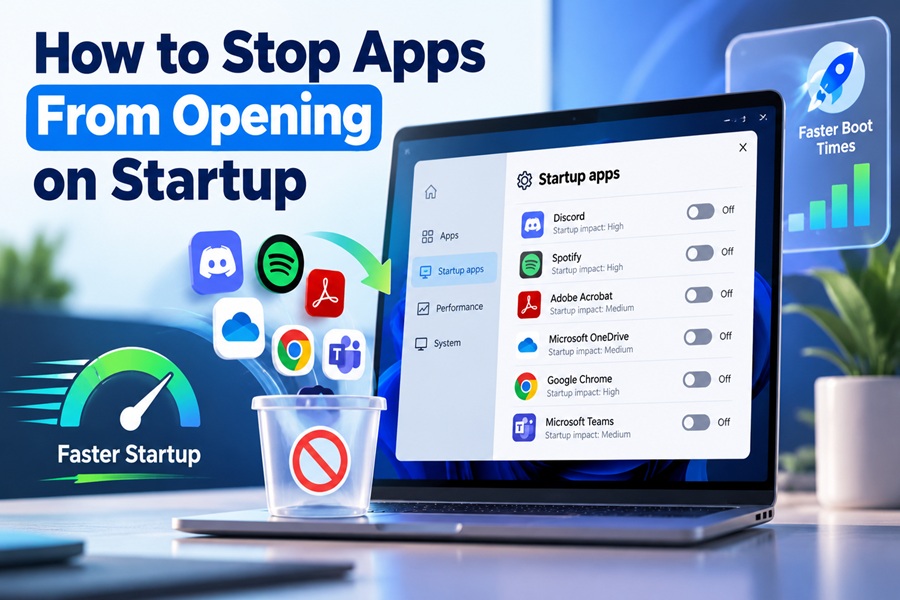
If Discord still appears, Windows may be launching it through its own startup list. Press Ctrl, Shift and Esc together, open the Startup apps tab, find Discord, select it and press Disable. If you ever change your mind, the same screen has an Enable button.
This route is useful for another reason. Task Manager shows the startup impact, so you can see how heavy Discord is on your machine compared with everything else that wakes up at sign in. On older or lower memory computers, the difference after disabling it is often noticeable.
The Windows Settings app offers the same switch. Go to Settings, then Apps, then Startup, and flip the toggle beside Discord. Use whichever of the two you find easier, because both change the same underlying behavior.
Door three: the Mac Login Items list
On a Mac, Discord can be registered as a login item. Open System Settings, choose General, then Login Items. Look under Open at Login, select Discord and press the minus button at the bottom of the list. On older macOS versions this list sits in System Preferences under Users and Groups.
You may also see Discord in the Allow in the Background section. That is a separate permission for helper processes, and you can switch it off if you do not need Discord reacting to anything while it is closed.
Door four: the Startup folder and other installs
Two surprises explain most of the stubborn cases.
The first is the Startup folder. Press the Windows key and R, type shell:startup and press Enter. If a Discord shortcut is sitting there, delete the shortcut. The program stays installed, and it simply stops launching with your session.
The second is that you may have more than one version of Discord. Some people install a test version alongside the regular one, and each version has its own startup setting. Open the one that is still launching and repeat door one inside it.
On Linux, the equivalent place is the Startup Applications tool, where you can untick Discord from the list.
Why Start Minimized might be the better answer
Not everyone wants Discord gone entirely. If you game with friends, work with a remote team or run a community, you might need it available without it demanding attention. With Open Discord on and Start Minimized on, the app launches quietly into the system tray, ready when you click it and invisible when you do not.
Here is a quick way to choose.
| Your situation | Best setting |
|---|---|
| Use Discord a few times a week | Open Discord off |
| Talk to a team every morning | Open Discord on, Start Minimized on |
| Gaming laptop with limited memory | Open Discord off, launch it before playing |
| Shared family computer | Open Discord off for everyone |
The close button trap
A related annoyance deserves mention. Clicking the X on Discord does not always quit it. By default the app can keep running in the tray, so your computer is still hosting it even though the window is gone. To quit it for real, right click the Discord icon in the system tray and choose Quit. If you want the X to fully close the app every time, look through the same App Settings area for the option that controls what the close button does. Wording and placement can shift as the app is updated, so scan the sidebar rather than expecting an exact label.
What changes after you turn it off
People often worry that disabling startup will make them miss messages. Think about what actually happens. Discord will not be running until you open it, so you will not get desktop notifications in that time. Your phone is unaffected, and any messages sent while you were away will be waiting when you log in. If you rely on being reachable at all times, the tray option is the smarter choice. If not, the quiet of a clean start is hard to beat.
The memory benefit is real too. A chat app with voice features, overlays and a web engine inside it is not tiny. Several background processes, an updater and hardware acceleration features can all come along for the ride, which is why cutting it from startup is a regular tip for slow boots.
A short checklist to run when it keeps coming back
- Turn off Open Discord in Discord’s own settings.
- Disable Discord in Task Manager or Windows Startup settings.
- Check the Startup folder with shell:startup.
- Remove it from Login Items if you are on a Mac.
- Look for a second installed version and repeat the first step there.
- If you use a startup manager tool, untick Discord inside that tool as well.
Go through these in order and the problem nearly always ends by step three. After that, Discord waits for you to open it like any ordinary program, and your morning starts without a chat window waiting at the door.




Comments